How to create a Welcome Workflow
Set up a welcome workflow to automatically send a personalized welcome message to new subscribers.
Log in to Gofraze
Log in to your Gofraze account using your email address and password.
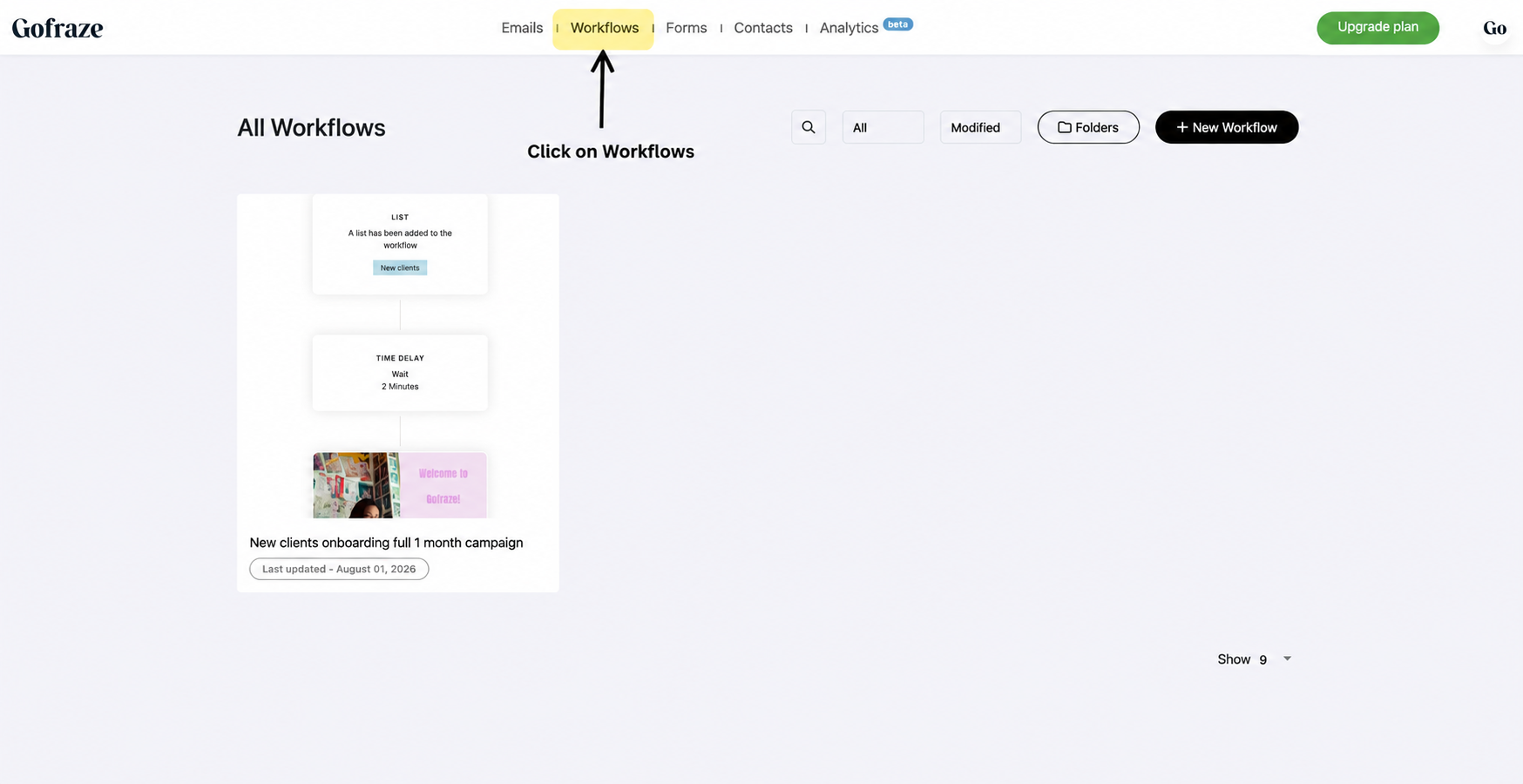
Open the Workflows page
After logging in, click Workflows from the top navigation menu.
This will open your Workflow dashboard.
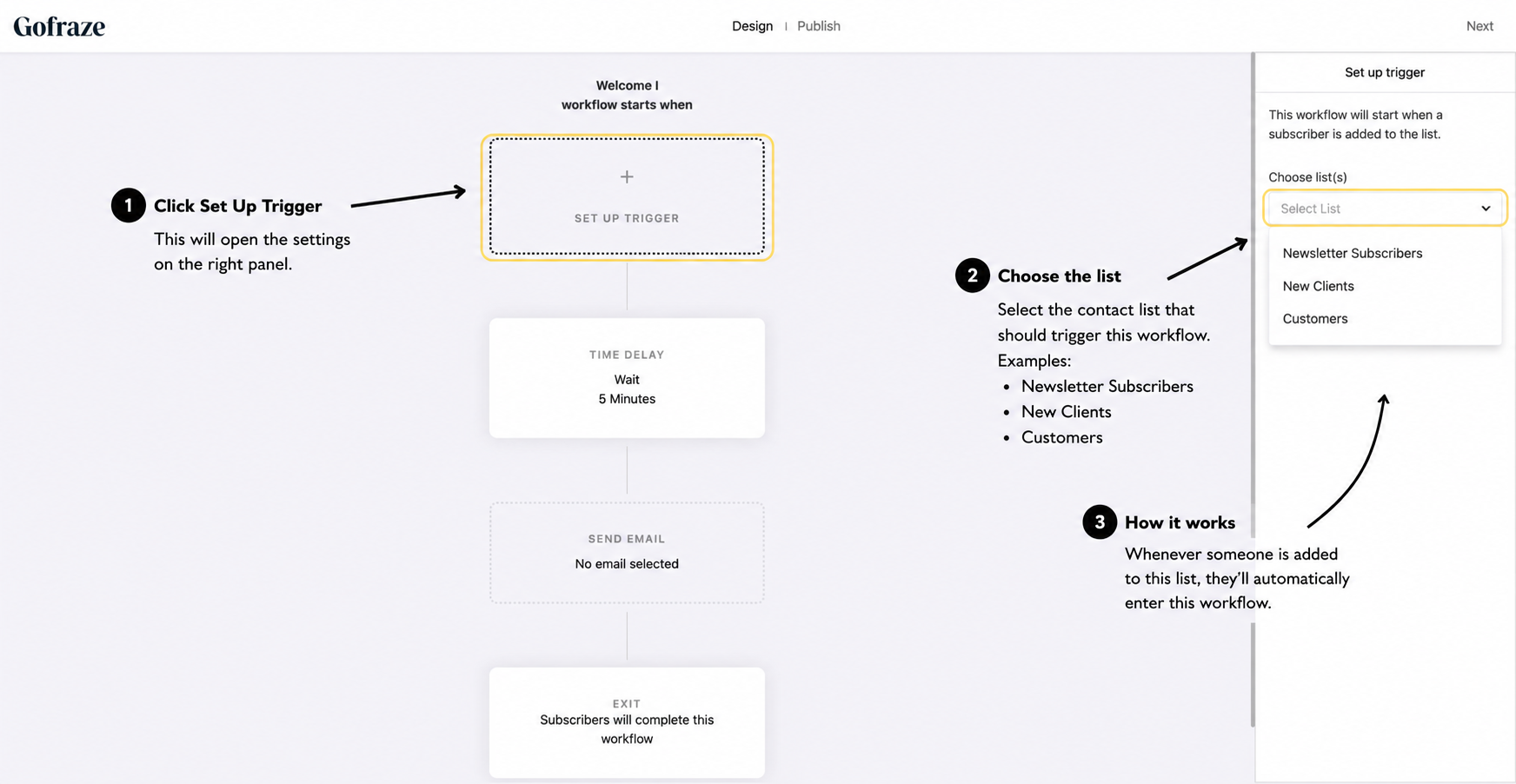
Create a new workflow
Click New Workflow.
A panel will open on the right side showing all available workflow templates.
Select Welcome, then choose Welcome I.
Click Customize
Choose your trigger list
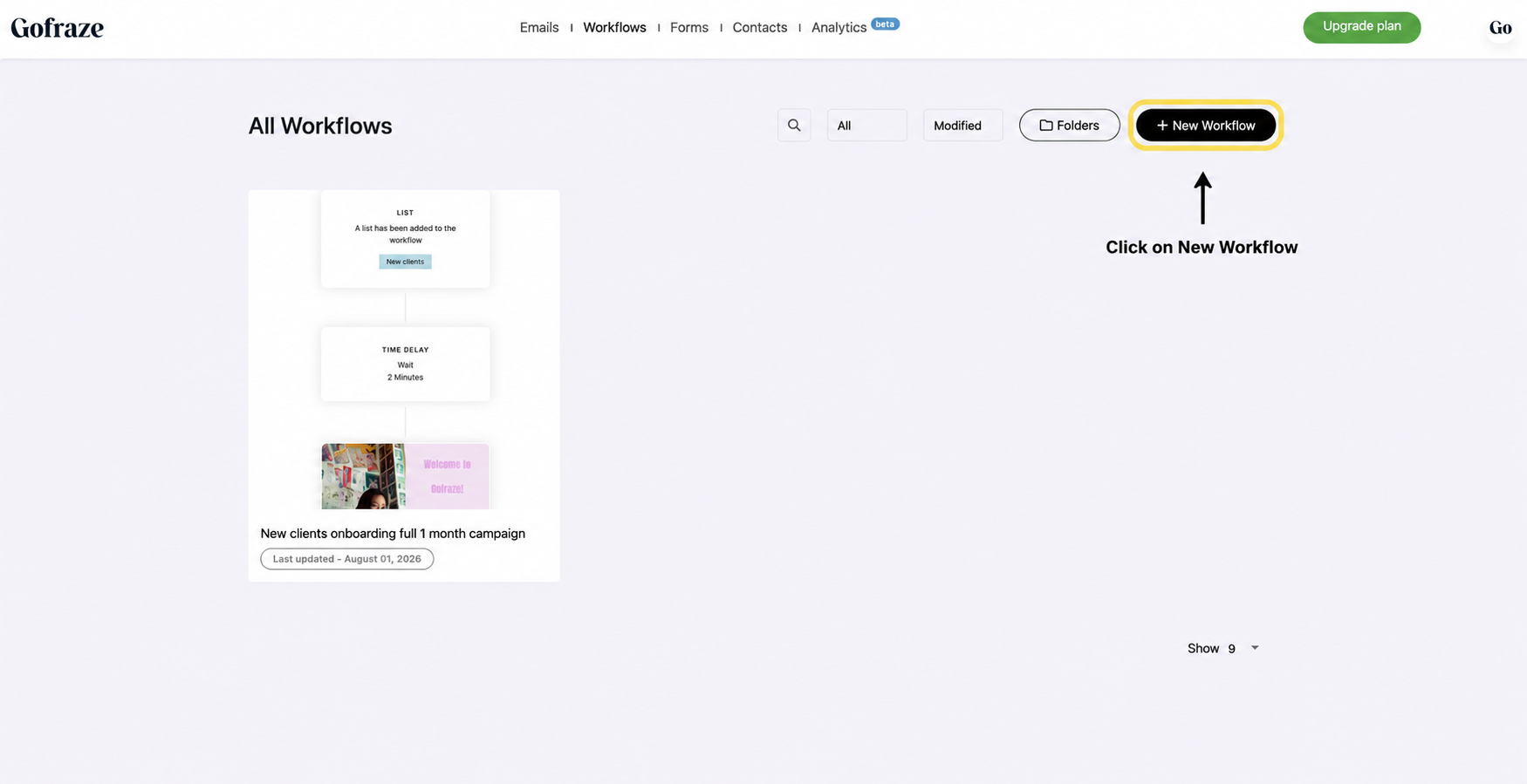
Inside the workflow editor, click Set Up Trigger.
On the right panel, choose the contact list that should start this workflow.
For example:
- Newsletter Subscribers
- New Clients
- Customers
Whenever someone is added to this list, they'll automatically enter the workflow.
Review the time delay
The Welcome I template includes a 5-minute delay before the first email is sent.
You can:
- Leave it at 5 minutes (recommended)
- Reduce it to 2 minutes
- Increase the delay if you'd like subscribers to receive the email later
Select your email
Click the Send Email block.
Choose the email you'd like to send.
If you don't already have one, you can:
- Create a new email
- Reduce it to 2 minutes
- Duplicate an existing email and edit it
Publish your workflow
Once everything looks correct:
Choose the email you'd like to send.
If you don't already have one, you can:
- Click Next
- Review your settings
- Click Publish
Your workflow is now active.