How to Create and Add a Form in Gofraze
Learn how to easily add a pop-up form to your website. Follow these simple steps to embed and display the form for your visitors.
Log in to Gofraze
Log in to your Gofraze account using your email address and password.
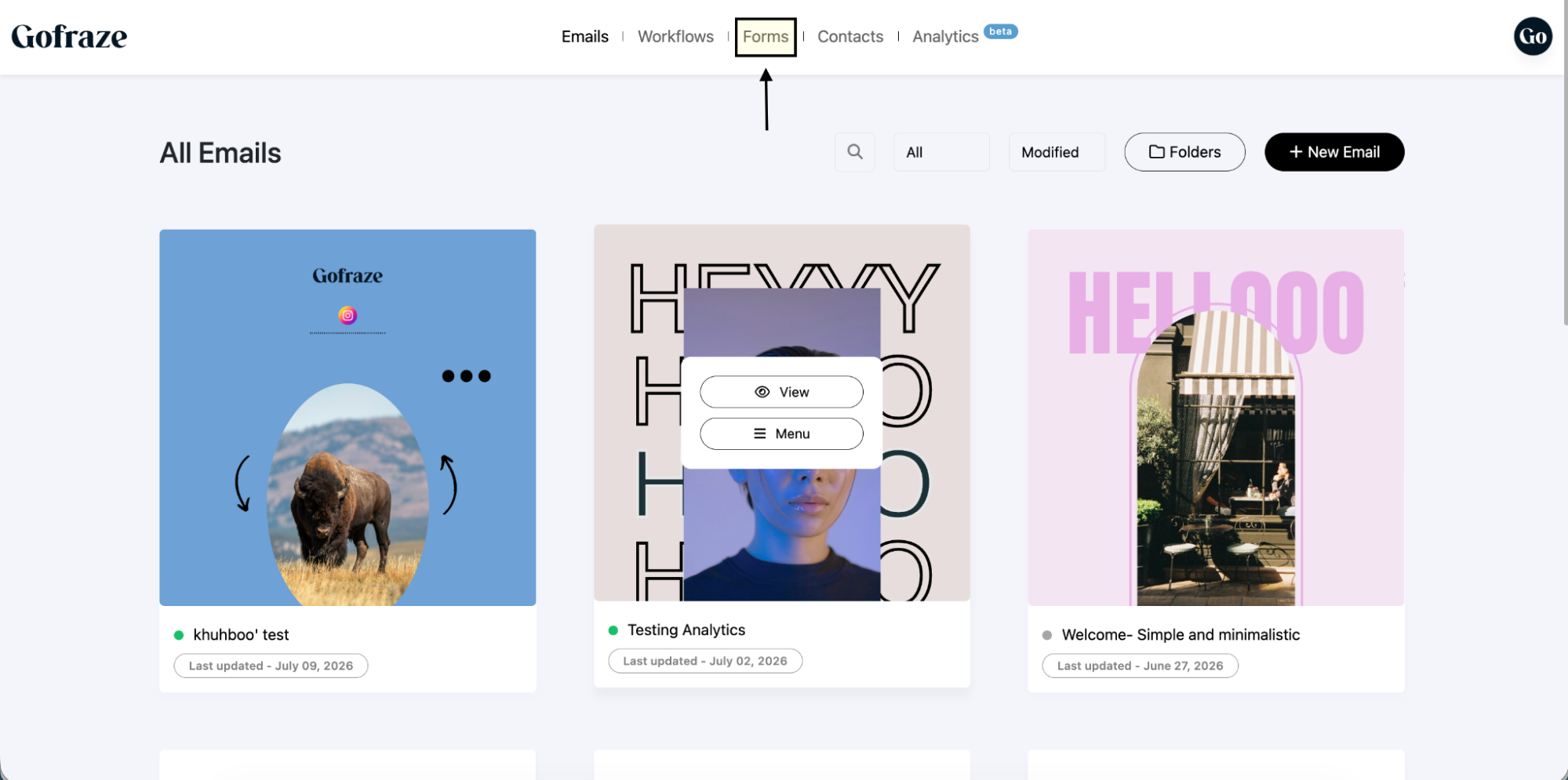
Go to Forms
After logging in, go to the Forms section from the dashboard.
Click on New Form to create a new form.
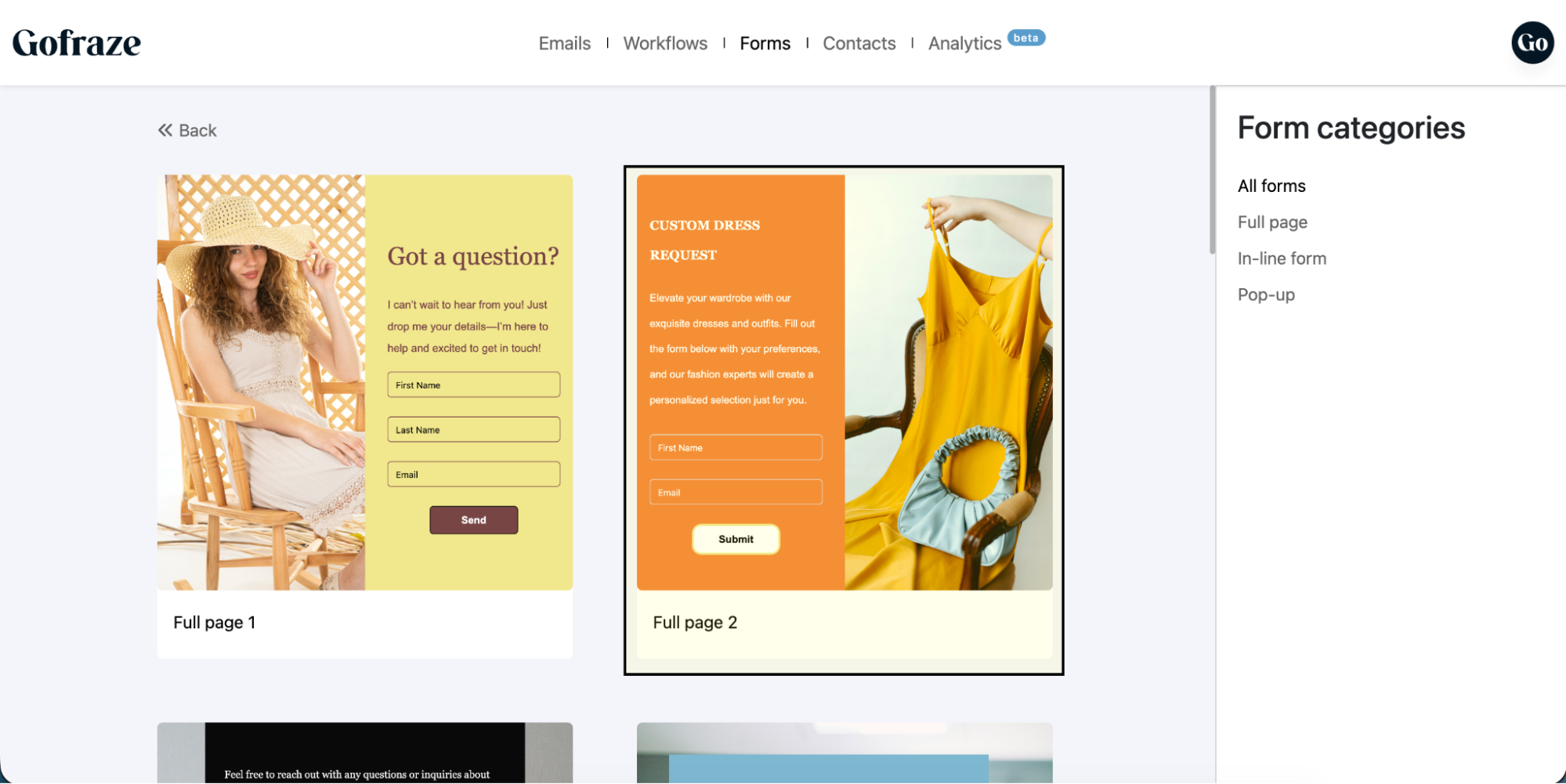
Select a Form
Choose a form template based on your requirement.
Select the form that best matches the information you want to collect.

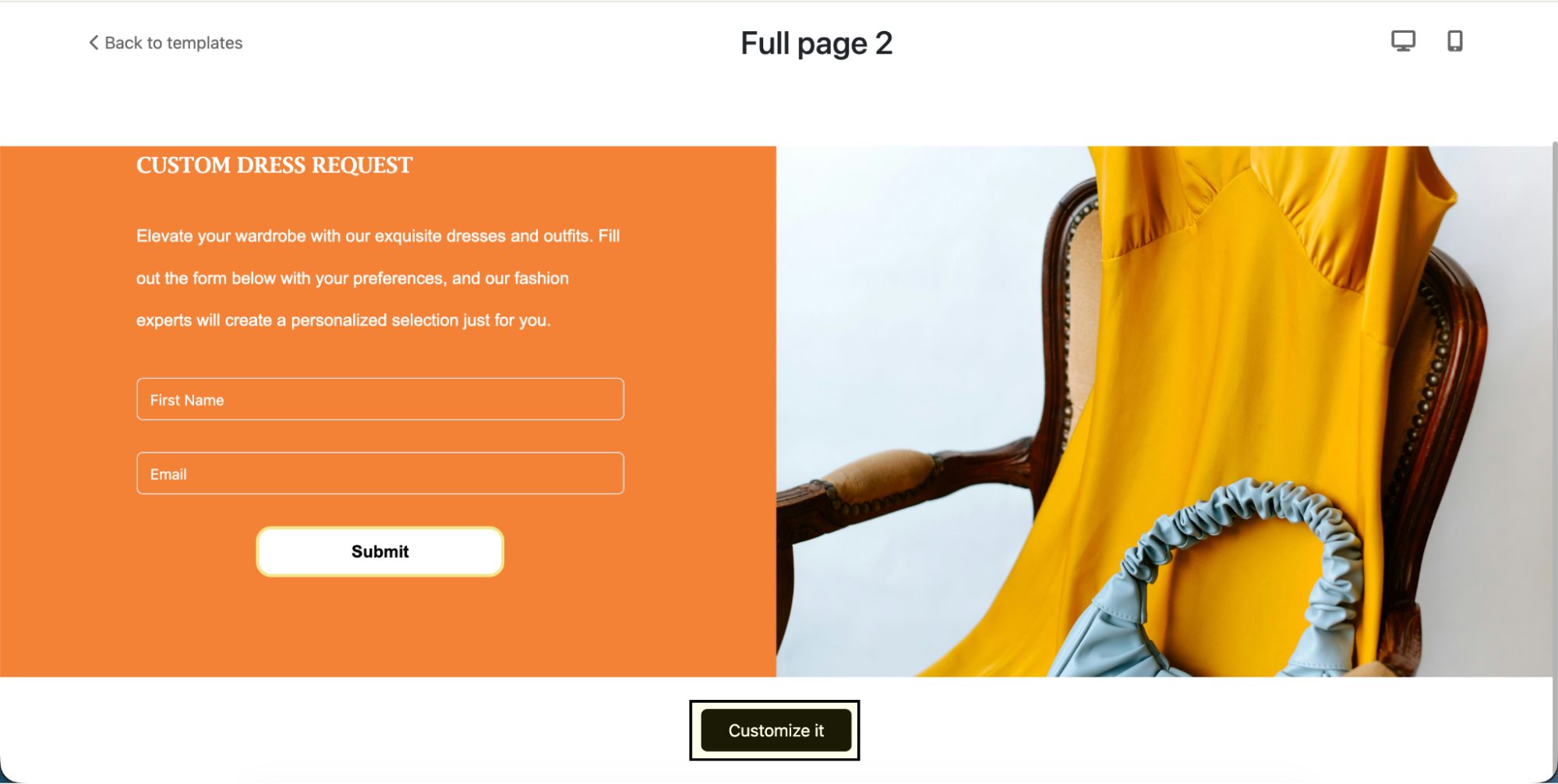
Customize the Form
After selecting the form, click Customize.
You can make changes to the form fields and appearance according to your needs.
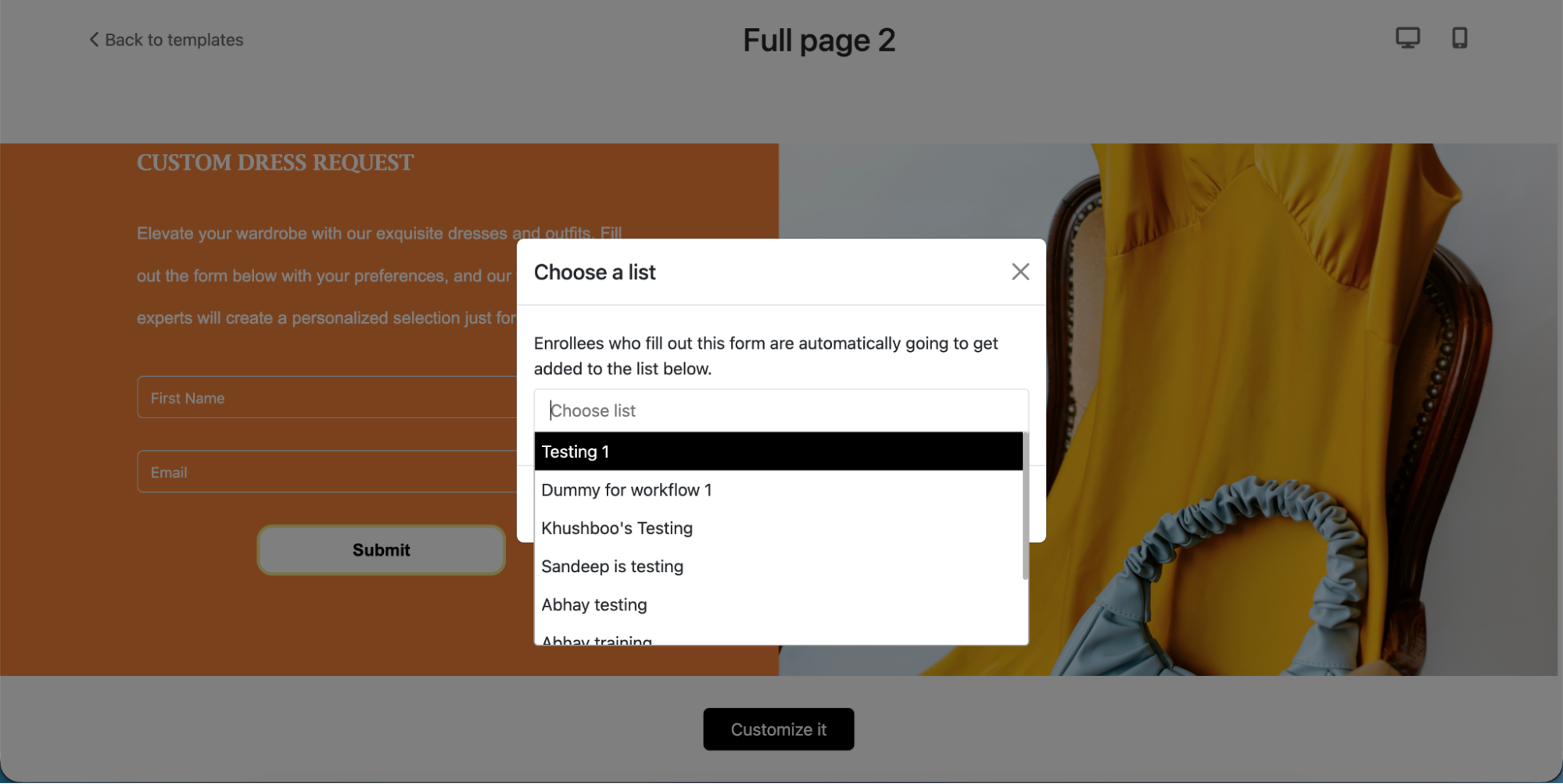
Choose a List
Click on Choose List and select the list where you want to save the information submitted through the form.
Edit the Email Template
Update the Email Template according to your requirement. You can change the email content, subject, and other details that users will receive after submitting the form.
Once you have finished editing the email template, click the Next button to continue.
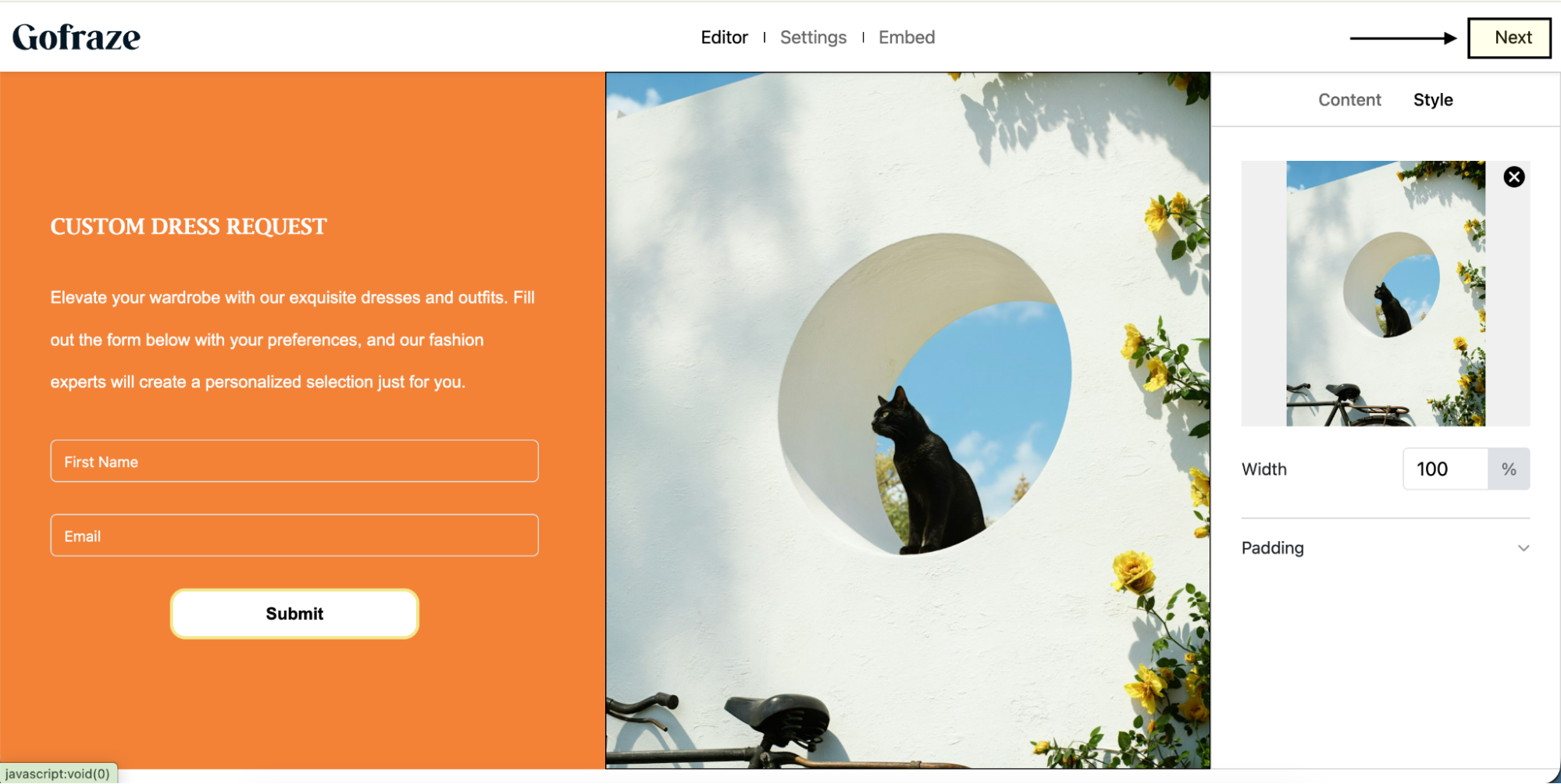
Select Your Subscribe List
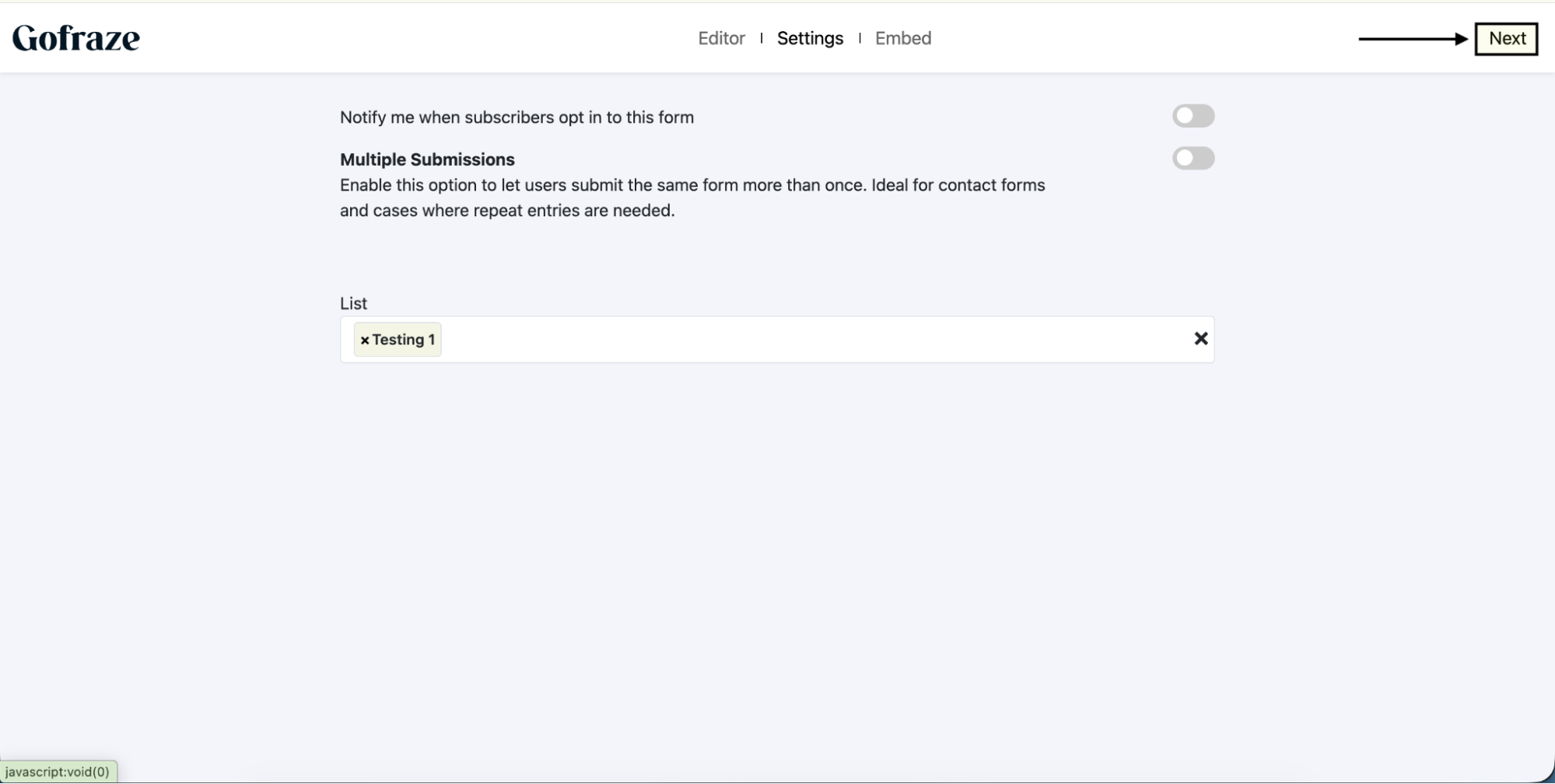
Choose the Subscribe List where the submitted user information should be added.
After click next button
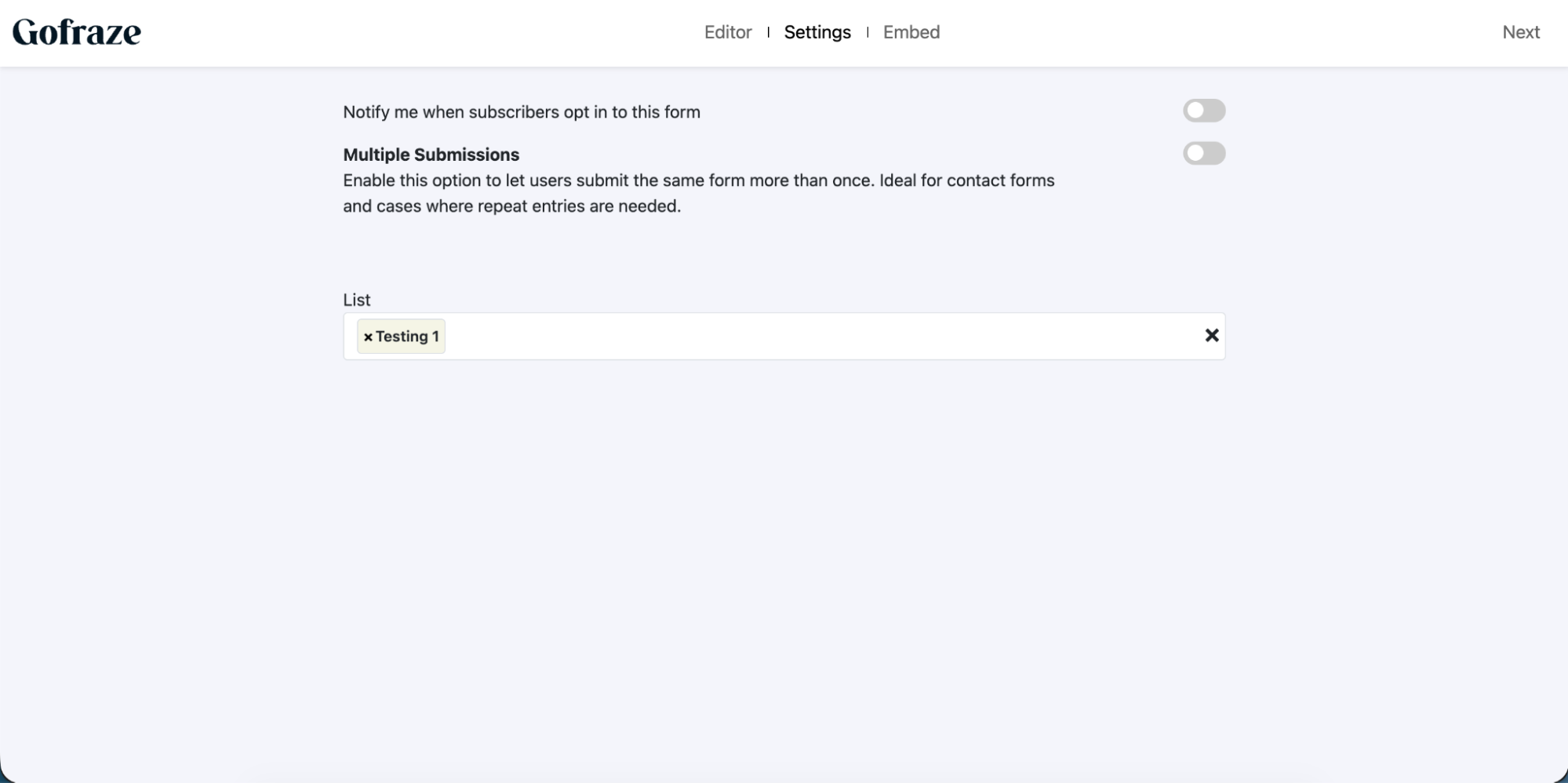
After click next button
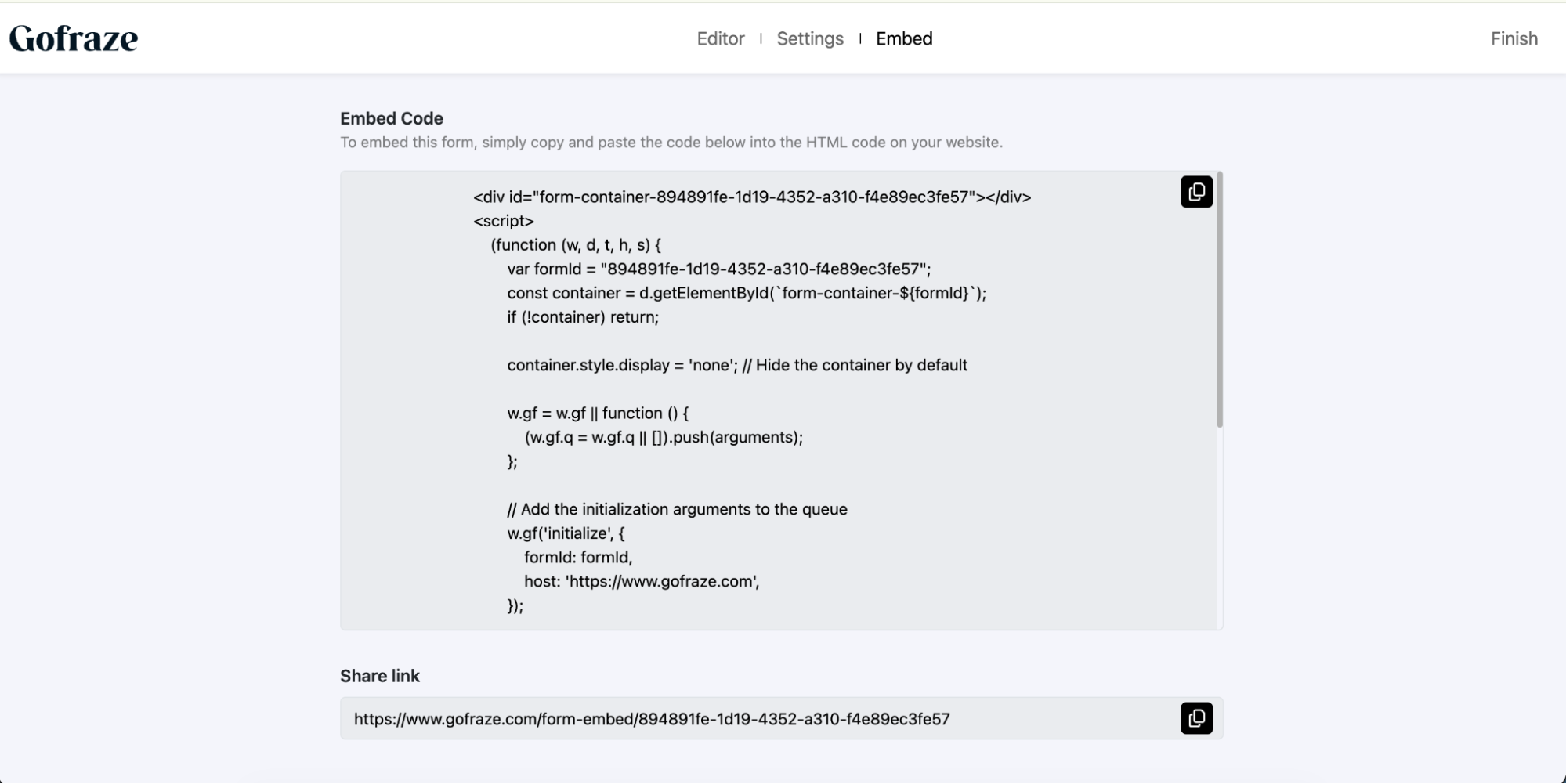
Copy the Form Code
After selecting the subscribe list, Gofraze will provide the form code. Copy the complete code so you can add it to your website.
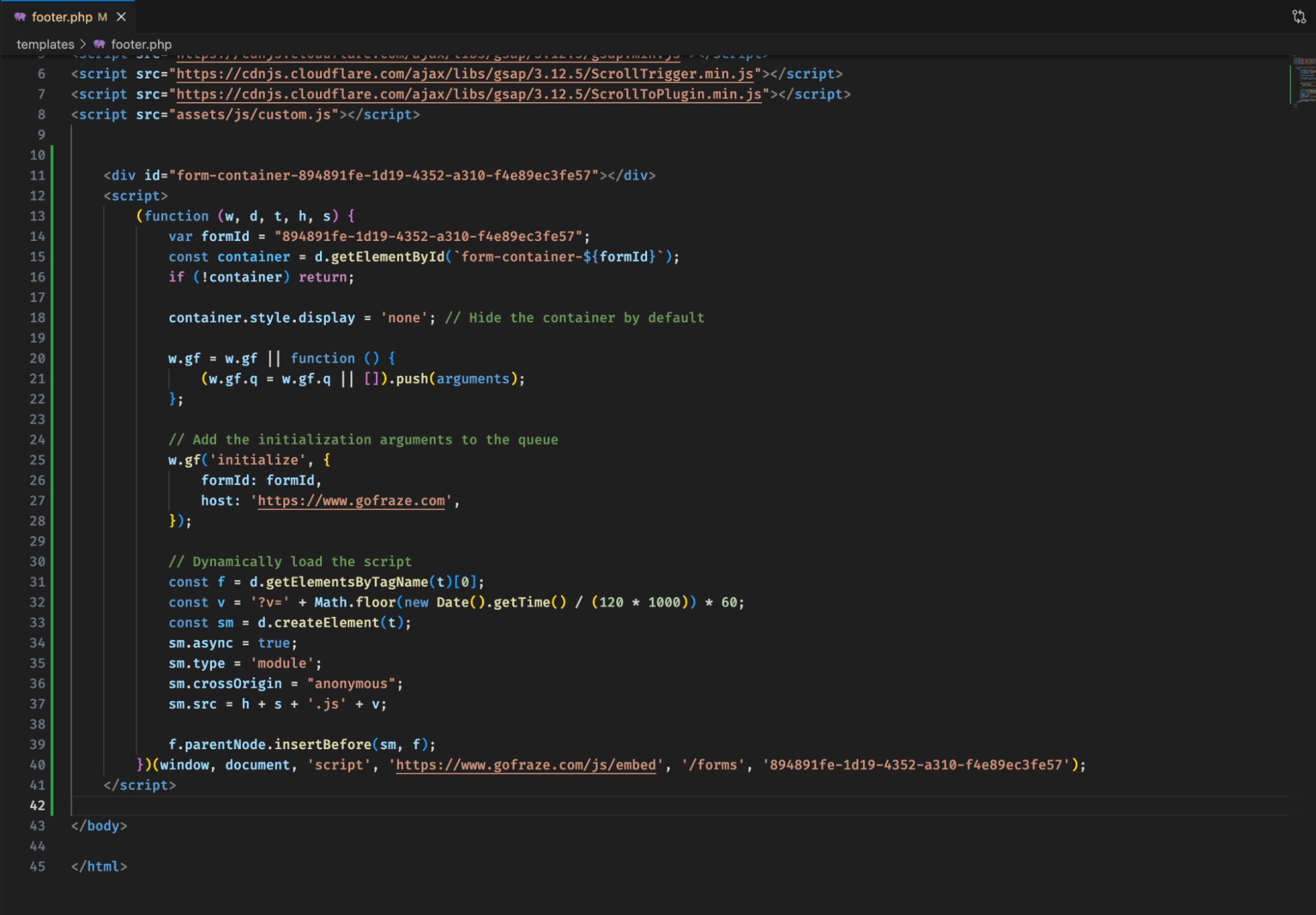
Add the Code to the Footer File
Open your website's Footer file and paste the copied Gofraze form code in the required location
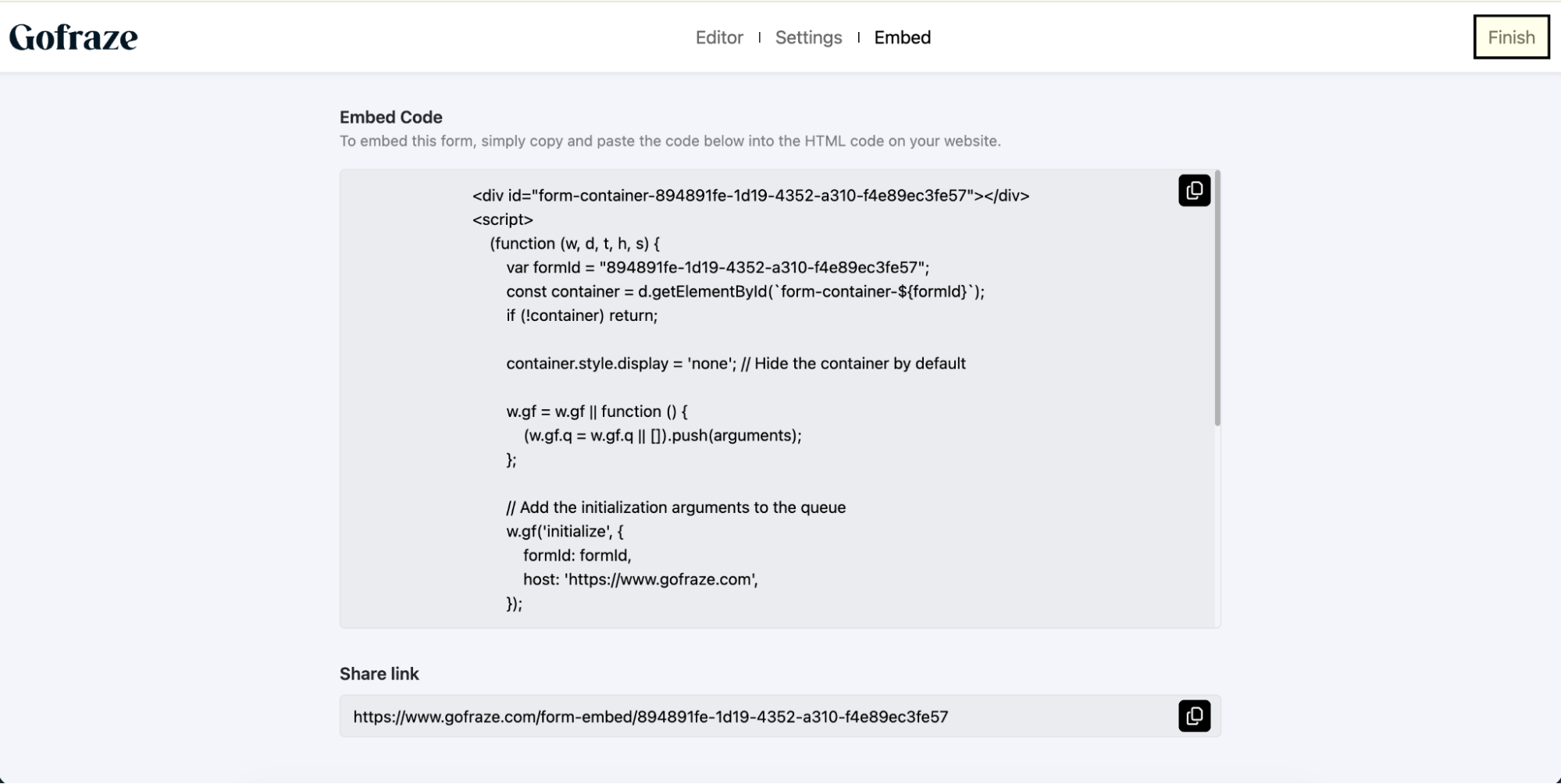
Finish
After adding the code to the footer file, return to Gofraze and click Finish to complete the form setup.
Important
Before completing the process, make sure you have:
- Selected the correct form
- Selected the correct subscribe list.
- Updated the email template.
- Copied the complete form code.
- Pasted the code correctly into the website footer.